
For a premier IPTV experience, the Amazon Fire TV Stick, particularly the Fire TV Stick 4K Max and Fire TV Cube, stands out as the top choice for dedicated streaming devices. These units boast a quad-core processor, specialized hardware for video decoding, and advanced Wi-Fi 6E, all contributing to seamless 4K viewing. This comprehensive 2026 guide will walk you through the entire process of setting up and fine-tuning Nordic One IPTV on your Firestick.
Before You Start
- A television connected to your home Wi-Fi or Ethernet network, along with an Amazon Firestick or Fire TV device.
- Your valid Nordic One IPTV subscription, with login details sent through WhatsApp or Email.
- Roughly 5 minutes needed for setup.
Step 1: Get the "Downloader" App
- Access the Find section from your Fire TV's main screen, then choose the Search option.
- Enter
Downloaderinto the search field. - Locate the Downloader application in the search results, click Download or Get, and allow the installation to complete.
Step 2: Activate Developer Mode and Allow Unknown Sources
To permit the installation of top-tier IPTV applications such as IPTV Smarters Pro or TiviMate using Downloader, please adhere to the following straightforward instructions:
- Access your Firestick's Settings, indicated by the gear icon on the home screen.
- Navigate to My Fire TV, then choose the About section.
- Special Instruction for Fire OS 2026 Users: Tap your Fire TV Stick's name seven consecutive times until you receive confirmation: "You are already a developer. No further action required."
- Return to My Fire TV by activating the back button. You should now find Developer Options listed.
- Choose Developer Options, then select Install unknown apps.
- Locate and activate the Downloader application by setting it to ON.
Step 3: Obtain and Install Your IPTV Application
- Start the Downloader application from your collection of installed programs, then allow any necessary storage access.
- Paste one of the provided shortcodes into the URL input field:
- IPTV Smarters Pro: Input code
78522then tap Proceed. - TiviMate IPTV Player: Input code
278077then tap Proceed.
- IPTV Smarters Pro: Input code
- The package for the APK setup will be downloaded automatically. Upon completion, tap Install.
- After completion, select Open to start your brand-new IPTV player.
Step 4: Access Your Nordic One IPTV Account
- When your IPTV Smarters or TiviMate application first launches, choose the Login with Xtream Codes API option (or the equivalent "Add Playlist" button).
- Input the information found in your purchase confirmation email:
- Any Identifier:
Nordic One IPTV 4K - User ID: [Your unique ID from WhatsApp]
- Secret Word: [Your unique password from WhatsApp]
- Server Address: [Your unique cluster link provided via WhatsApp]
- Any Identifier:
- Tap Add User or Login. Within a minute, the application will populate with all available channel groupings, comprehensive EPG data for live sports, and our extensive VOD library of over 142,000 titles.
Expert Advice for Smooth Firestick Viewing
- Activate Hardware Decoding by navigating to your IPTV player's configuration menu and setting the Video Decoder to Hardware (HW+). This leverages your Firestick's graphics processing unit for smoother playback.
- Buffer Size Adjustment: Configure the buffer cache to Medium or Large (3-5s) for enhanced resilience against Wi-Fi signal interruptions.
- Weekly Cache Clearing: Navigate to Settings > Applications > Manage Installed Applications > Clear Cache to ensure optimal Firestick memory efficiency.
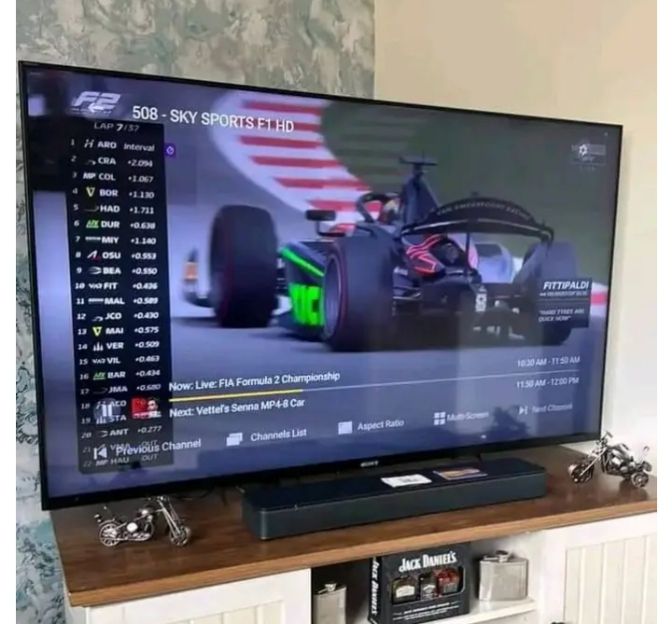
Enhance Your 4K Viewing Today
Experience the service enjoyed by more than 15,000 happy subscribers throughout Europe – choose Nordic One IPTV.
Gain Immediate Access Now →